Desktop automation for Windows

Your mouse is about to have a mind of its own.

Set a trigger — a hotkey, an image on screen, a colour bar, a timer — and Polter Click takes it from there: clicking, typing, and watching in your place.

// what actually happens when it fires

TRIGGER hotkey · F6
WAIT UNTIL "Bobber" appears in "Lake surface"
THEN press 1 → wait 1.2 s → click it

What it is

A macro tool that can actually look at your screen.

Most macro recorders replay a fixed sequence and hope the world stayed still. Polter Click is built around the opposite idea: a macro is a set of steps that wait for something — an image appearing, a bar dropping below a level, a key being held — and only then act.
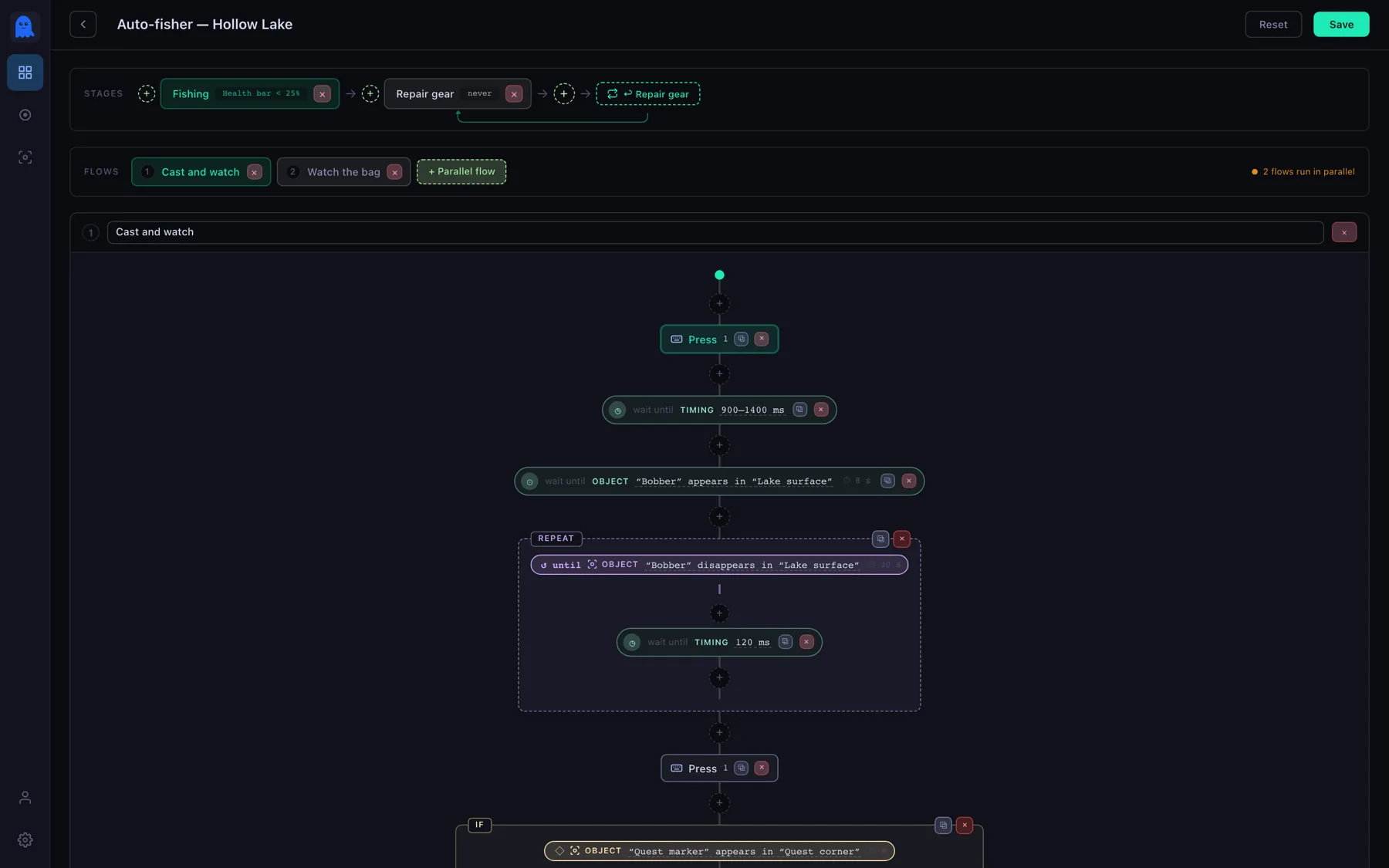
The Polter Click macro editor showing stages, parallel flows and a chain of nodes
The editor: stages across the top, the stage's parallel flows under them, and the selected flow's chain of steps running down the middle.

You build it visually. A macro has a trigger key and one or more stages; a stage holds parallel flows; a flow is a chain of steps you drag together — press a key, pause, wait for an object, branch, loop.

Nothing here is a script. There is no language to learn, no timing to guess at, and no "record and pray": every step, condition and timeout is visible on one rail, and any of them can be changed in place.

How the model works →

Seeing

Point at a thing. It finds it again.

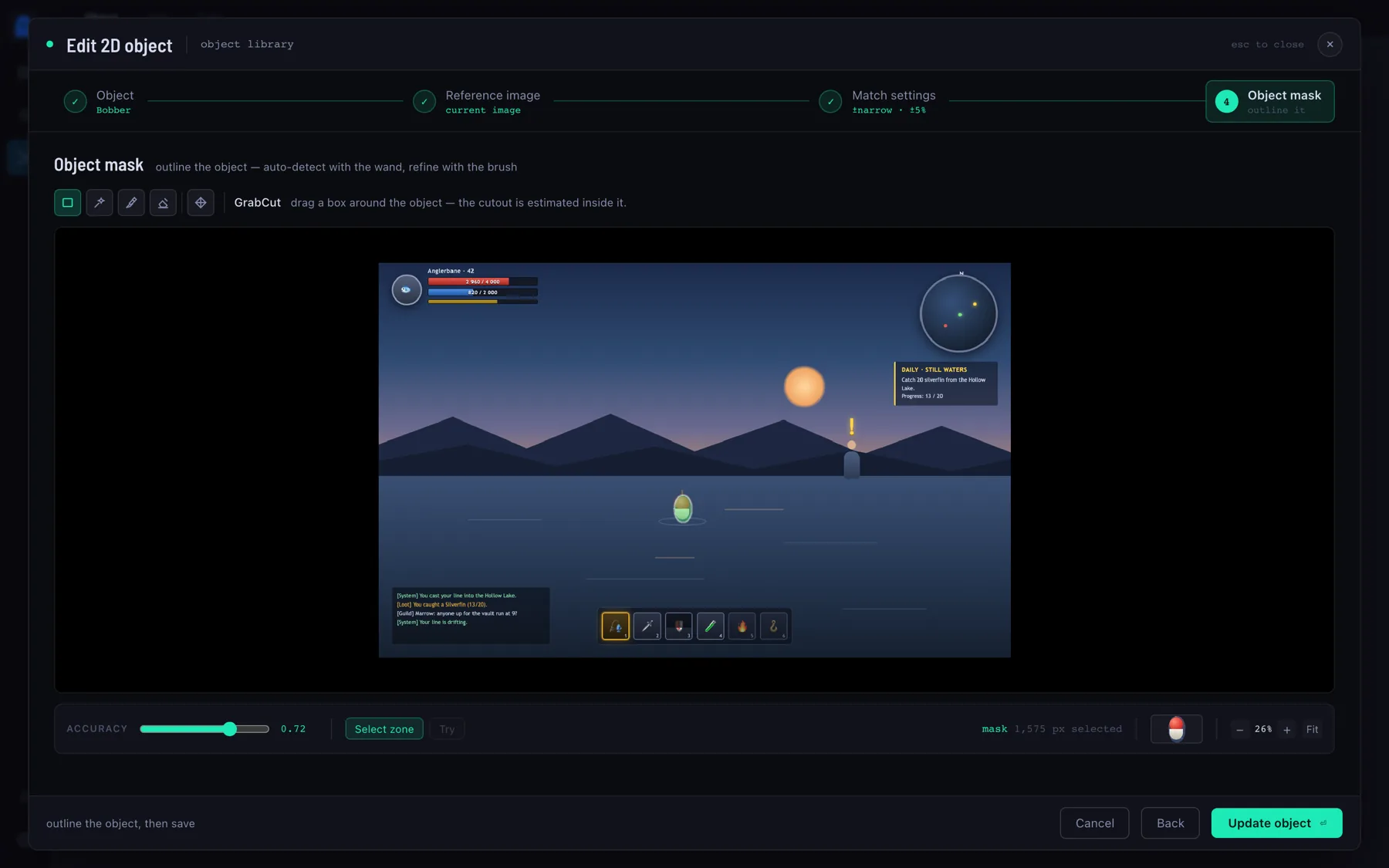
Take a screenshot, outline the thing inside it, and say how much it is allowed to change. From then on it is a condition you can wait on, branch on, or aim a click at.

The mask editor, outlining an object inside a screenshot
Outline it with GrabCut, a magic wand, or a brush — the cutout is what gets matched, not the box around it.
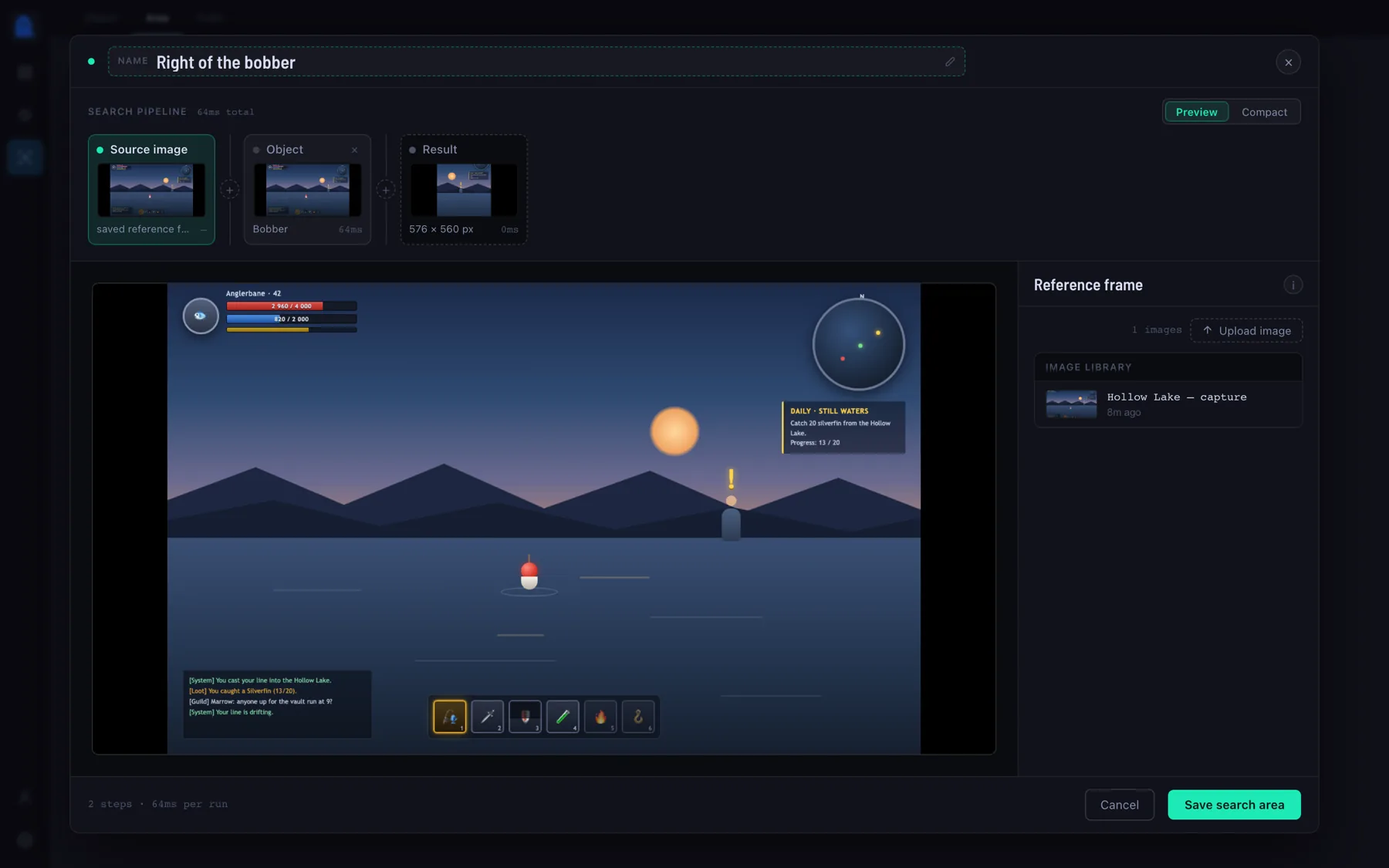
A search area built from an object step and a crop
Narrow where it looks — a fixed region, or one that follows another object around the screen.

Everything a poltergeist needs.

Wire triggers to conditions to actions, and let Polter Click sit in the tray and run the routine — for as long as you need it to.

Keystrokes on cue

Press, hold and release any key or chord — and type whole strings, character by character, at the speed you set.

Mouse without hands

Move to a point, glide along a heading, or find an object and move onto it — then click it, however many times you need.

Watches the screen

Wait for an image to appear or vanish, or for a colour bar to cross a level. It keeps looking so you don't have to.

Runs lanes in parallel

Several flows in one stage run at the same time — cast, watch a bar and post a message on a timer, all from one macro.

Branches, loops, stages

If / else, repeat-until, break — and named stages that hand off to each other when a condition says the phase is over.

Records what you do

Turn on the recorder, play normally, and get back an editable flow — clicks, holds and typing already grouped for you.

Quiet in the tray

Close the window and it keeps running in the background — there when you need it, invisible when you don't.

Export and share

A macro exports as one file that carries its objects, areas and colours with it — and imports with a review step, not a mess.

Stays out of the way

The screen is only captured while something is actually watching it, at a frame rate and resolution you choose.

Before you download

The things people ask first.

Which systems does it run on?

Windows 10 and 11, 64-bit. It installs into your own user folder, so there is no administrator prompt. There is no macOS or Linux build to download today.

Am I allowed to use it here?

That depends on the program or the game, and only its rules can answer it. Polter Click is not a bot — it plays nothing for you and knows nothing about the game; it presses the keys you told it to press. But plenty of programs and online games forbid automated input of any kind, and some ship anti-cheat that looks for it. Read those rules first, and where automation is not allowed, don't use it — that decision, and what follows from it, is yours. We are here to make repetitive things comfortable, not to hand anybody an edge.

Does anything leave my computer?

Your macros, images and settings live in a local database on your machine, and screen captures are read in memory to answer a condition. The only thing it reaches out for on its own is checking whether a newer version has been published.

Do I have to write scripts?

No. Every step, condition and timeout is a control in the editor. If you would rather not build at all, record yourself doing the thing and edit the result.

All questions, and the full guide →

It's still just you. Just faster.

For Windows 10 and 11. Set your first trigger in a couple of minutes.

NSIS installer · per-user, no admin rights · auto-updates itself